Animation Viewer
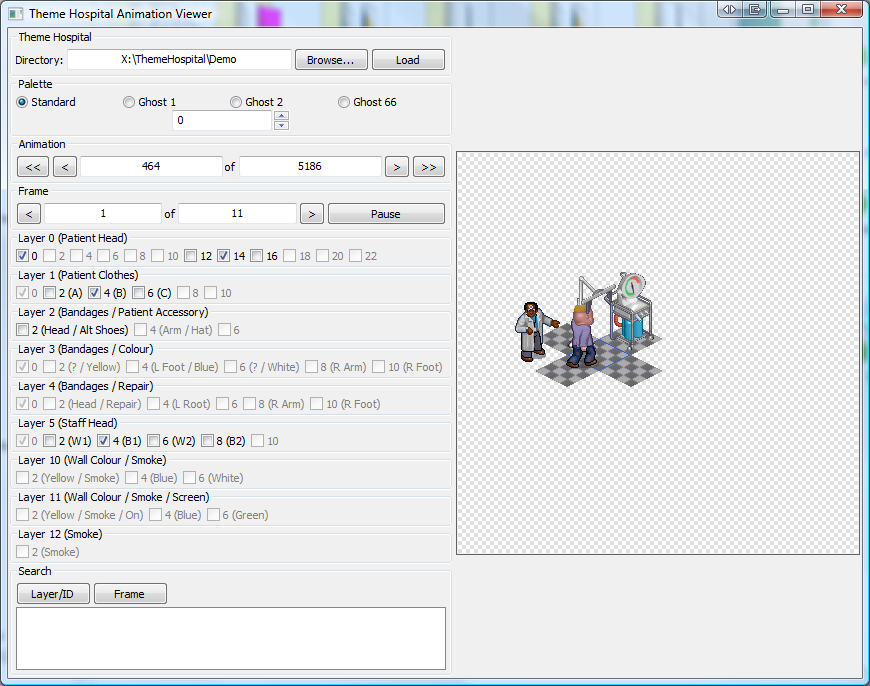
Included in CorsixTH is a tool called AnimView, which can be used to view the animation files of the original Theme Hospital game (or the demo version).
When you open this program you first see a dialog that asks if you want to launch animation view. If you select no it will open the sprite viewer, so select Yes.
You then have to select the directory for the theme hospital data, typically this will be in Hospital\Data or Hosp\Data. Use the browse button to navigate to this location or just type it in the box. Now you can cycle through all the available animations, you can play around ticking different options to see the effects - don't worry as you cannot break anything.
If you have performed the export function in AnimView in the past then this could be the problem as the animation viewer will now want to load those files it created. If you want to revert back to just loading the standard files from theme hospital (and resolve this problem) you need to remove the file VSPR-0.xml from the Theme Hospital folder. You can find this file in Hospital\Data or Hosp\Data. When you find this file you can either delete it or move it to another folder. Then try to use AnimView and it should revert back to loading the theme hospital animations and resolve this issue. See issue 1579.
You will need wxWidgets and specifically the tool wx-config, which can be found in the libwxgtk2.8-dev package. With this installed, simply compile and run:
cd AnimView
make
./AnimView
brew install wxwidgets
Alternatively compile wxWidgets from source so that it can be linked as a static library later in the build process. Note that this does not require installing wxWidgets, this guide will simply be compiling the source code to create the required libraries. To install wxWidgets system wide remove the --prefix flag from the configure command or use homebrew.
Obtain the latest stable copy of wxWidgets (minimum 3.0+) from here. From this point these commands are to be used in Terminal (or equivalent) starting at the folder of the downloaded file. This sequence of commands will build wxWidgets to the build_files/wxwidgets folder, adjust as wished.
tar jxf wxWidgets-*
cd wxWidgets-*
mkdir build-release
cd build-release
 ../configure --disable-shared --with-macosx-version-min=10.8 --enable-unicode --prefix="~Downloads/CorsixTH/build_files/wxwidgets/" --with-opengl --with-libjpeg=builtin --with-libpng=builtin --with-libtiff=builtin --with-zlib=builtin --with-expat=builtin
make
make install
If wxWidgets is installed systemwide, e.g. via homebrew, it can be discovered by CMake. All that is required is to add -DBUILD_ANIMVIEW=ON to any otherwise functioning cmake command.
If it is not then use the following command, substituting the following 'cmake' for a functioning cmake command and the path with the wxWidgets path.
cmake -DBUILD_ANIMVIEW=ON -DwxWidgets_CONFIG_EXECUTABLE=build_files/wxwidgets/build-release/build-install/bin/wx-config
Alternatively open the CMake app. Scroll down to the BUILD_ANIMVIEW option. Select this to build AnimView. Now there will be one red line for the option wxWidgets_CONFIG_EXECUTABLE. Click in the Value box for this option and click the ... button. Now in the Finder window navigate to the directory where wxWidgets is located and go to build-release, build-install, bin and select wx-config. Click Configure again to apply the changes. Finally click Generate to make the XCode project file
cd build/AnimView
xcodebuild -configuration Release
Alternatively, open the AnimView.xcodeproj in the AnimView folder. Specify build for Release or edit scheme to Release then build.
The app called AnimView.app can be found in the Release folder.