 Ask AI
Query Builder
Last updated: Feb-24-2026
The Query Builder feature enables you to perform a complex search with different 'AND' or 'OR' rules. You can enter a search expression into the search bar using the Search expression syntax.

Search using an expression
To perform a search using an expression:
- Click Assets in the Product Navigation menu.
- Open the Query Builder:
- Type a special character in the Global Search bar located at the top right of the Media Library and select Search by query from the drop-down menu.
 OR
OR - Click Build query in the More dropdown menu.
- Type a special character in the Global Search bar located at the top right of the Media Library and select Search by query from the drop-down menu.
- Type a Search expression in the search bar and press enter.


Examples
- Find assets with a name that starts with 2019 (but not assets that contain
2019in another token within the name):filename=2019*
(The equal sign forces exact search rather than searching within any token, while the asterisk indicates any number of characters after the defined string) - Find all image assets with a width between 800 and 1028 pixels, a 16:9 aspect ratio, and that has BOTH 'sale' and 'shoe' as tag values (where
salemust be an exact tag value, whileshoecan match any token within a tag value (dress-shoeas a tag will match):
resource_type=image AND width:{800 TO 1028} AND aspect_ratio="16:9" AND tags="sale" AND tags:"shoe"
Saved searches
Save up to 15 searches and revisit them anytime. Additionally, collaborate effectively by sharing commonly used searches with your teammates to aid them in finding the right images. This feature allows experienced users and Admins to provide assistance to those who may not be familiar with the asset organization taxonomy by sharing their saved searches. Searches shared by Admins will be conveniently accessible from users' Homepage.
Saving a search
To save a search:
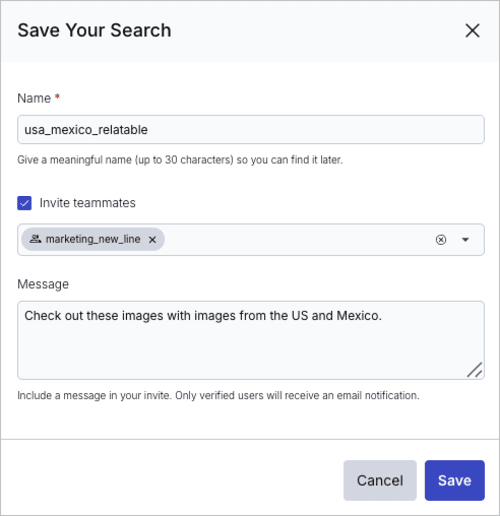
- Click Save.
- In the dialog box, give the saved search a descriptive name.
- Optionally share it by inviting teammates and adding a message.
Accessing saved searches
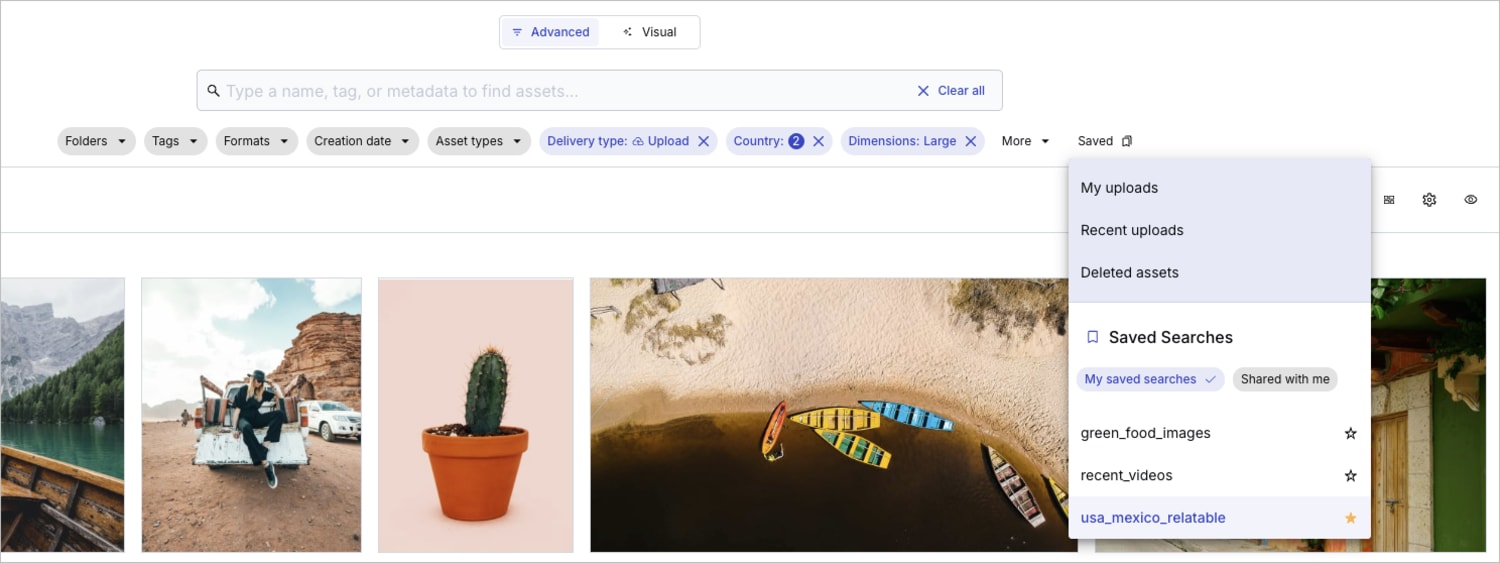
Access all of your saved searches from the Saved dropdown located to the right of the filters. Filter them by My saved searches or Shared with me.
Managing saved searches
After saving a search, you can modify it in the following ways:
Save Changes: If you edit the filters of a saved search, click Save Changes to overwrite the original saved search. Any changes you make affect all users you've shared the search with.
Options menu: Use the (3-dots) options menu for additional actions:

-
Share: Internally share your saved search:
- An email notification is automatically sent to anyone you've shared with who hasn't opted out of receiving emails in the My Profile page of the Console Settings.
- Only Can view permissions are available, so those you invite can view results but can't modify the original saved search.
- If a user lacks folder permissions for specific assets, they won't be able to view those assets in the shared search.
- For Assets users, if you are an administrator, the saved search you shared is accessible from the homepage of all users you shared with.
- Share with: View avatars of users you've shared with.
- Save As...: Save your filtering edits as a new saved search.
- Delete Saved Search: Deletes the saved search for both you and any users you've shared it with. The deleted saved search can't be recovered.
Access saved searches quickly
You can star saved searches to mark them as favorites. Starred searches appear in the My Favorites section on your homepage and in the left Product Navigation menu, making them easy to find and access quickly.
Navigate to a saved search and toggle the star icon:

Saved searches shared with me
If a teammate shares a saved search with you, find it in the Shared with me section of the search navigation drop-down.
You'll receive an email containing a link to the saved search, unless you opt out in the Email Preferences tab of the My Profile Console Settings page.
In Assets Enterprise plans, saved searches shared by an administrator are displayed in the homepage, accessed from the Home tab of the Media Library.
You can refine a search shared with you further and save the updated version under a new name, but you can't modify or overwrite the original saved search.
Sharing saved searches to users' homepages video tutorial
When administrators share saved searches, users they've shared with can conveniently access these shared saved searches from their homepages.
- This video demonstrates the process of saving and sharing an advanced search. However, a search initiated in the Query Builder can also be saved and shared using the same method.
- Some features have been updated since this video was created. However, the video still demonstrates the general flow.
Error
Rate this page:
